Flet Studio 2.0: from the browser to the app stores

When we launched Flet Studio back in May, it was a place to write a Flet app in the browser, run it and share it as a link. In July it got an AI agent, and in September the agent got eyes and ears to see the app it builds.
That first post ended with a promise: "Further down the road we'd love to take you the rest of the way: packaging and publishing your app straight from the browser. That part's still cooking."
It's cooked! Today we are releasing Flet Studio 2.0. It takes your app from the browser to your users: build it for Android, iOS, Windows, macOS, Linux and the web, sign it, and publish it to Google Play, the App Store and the Microsoft Store. No Xcode, no Android Studio, no Flutter SDK, and no Mac required to ship an iPhone app.
One app, every platform
If you've ever packaged a Flet app with flet build, you know the drill: install Flutter,
install Android Studio for Android, get a Mac with Xcode for iOS and macOS, a Windows machine for
Windows, then figure out keystores, certificates, provisioning profiles and notarization. Each
platform is its own small adventure.
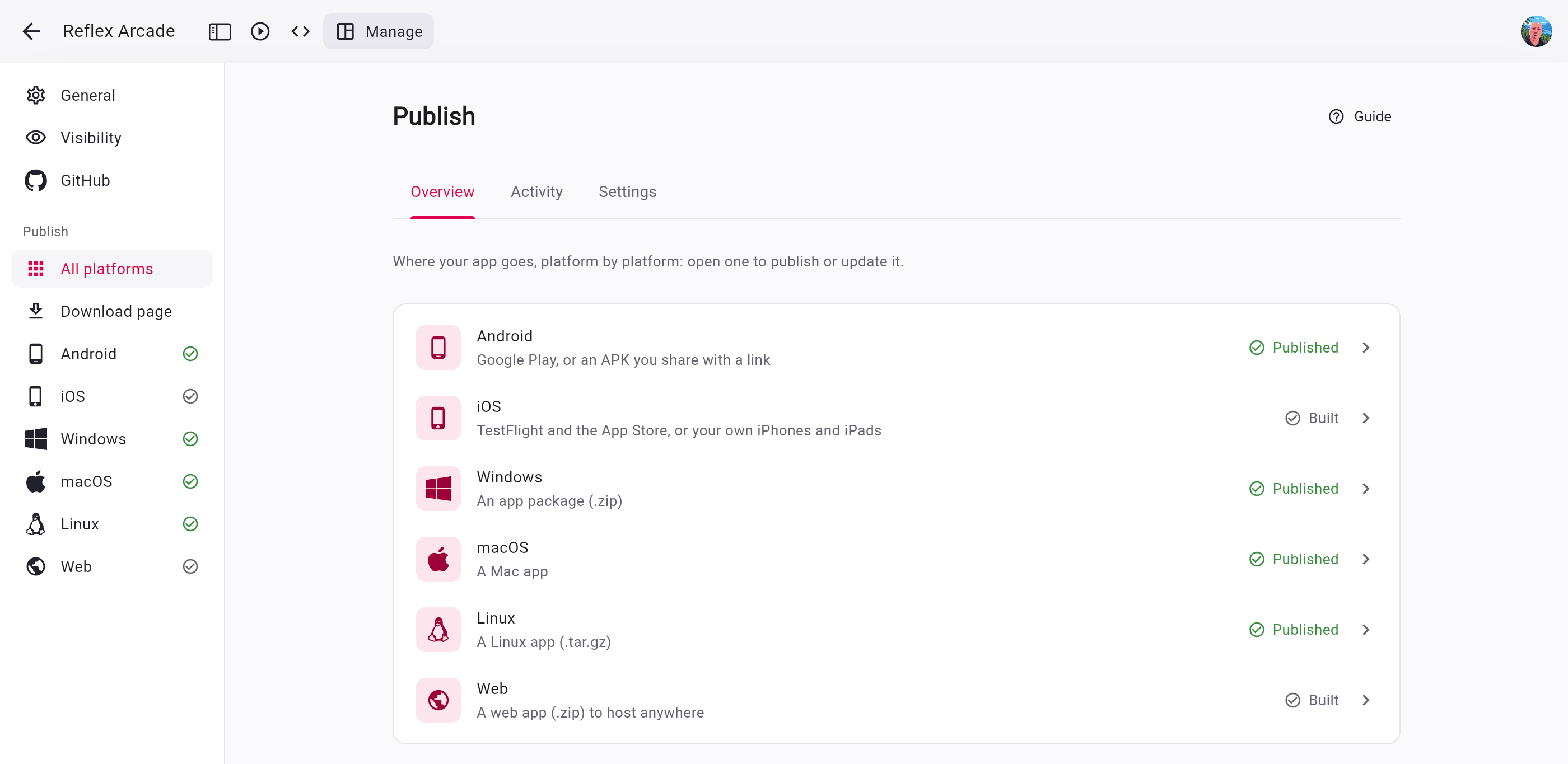
Studio 2.0 does all of that in the cloud. Open your app, go to Manage › Publish, and you get a page for every platform. Each page has a card for every place the app can go: a store, your own devices, or a file you share. Click Create and a build machine picks up your app - Linux and Windows VMs for Android, web, Linux and Windows apps, real Macs for iOS and macOS. You watch every step and its log live, and Activity keeps the history of your runs.
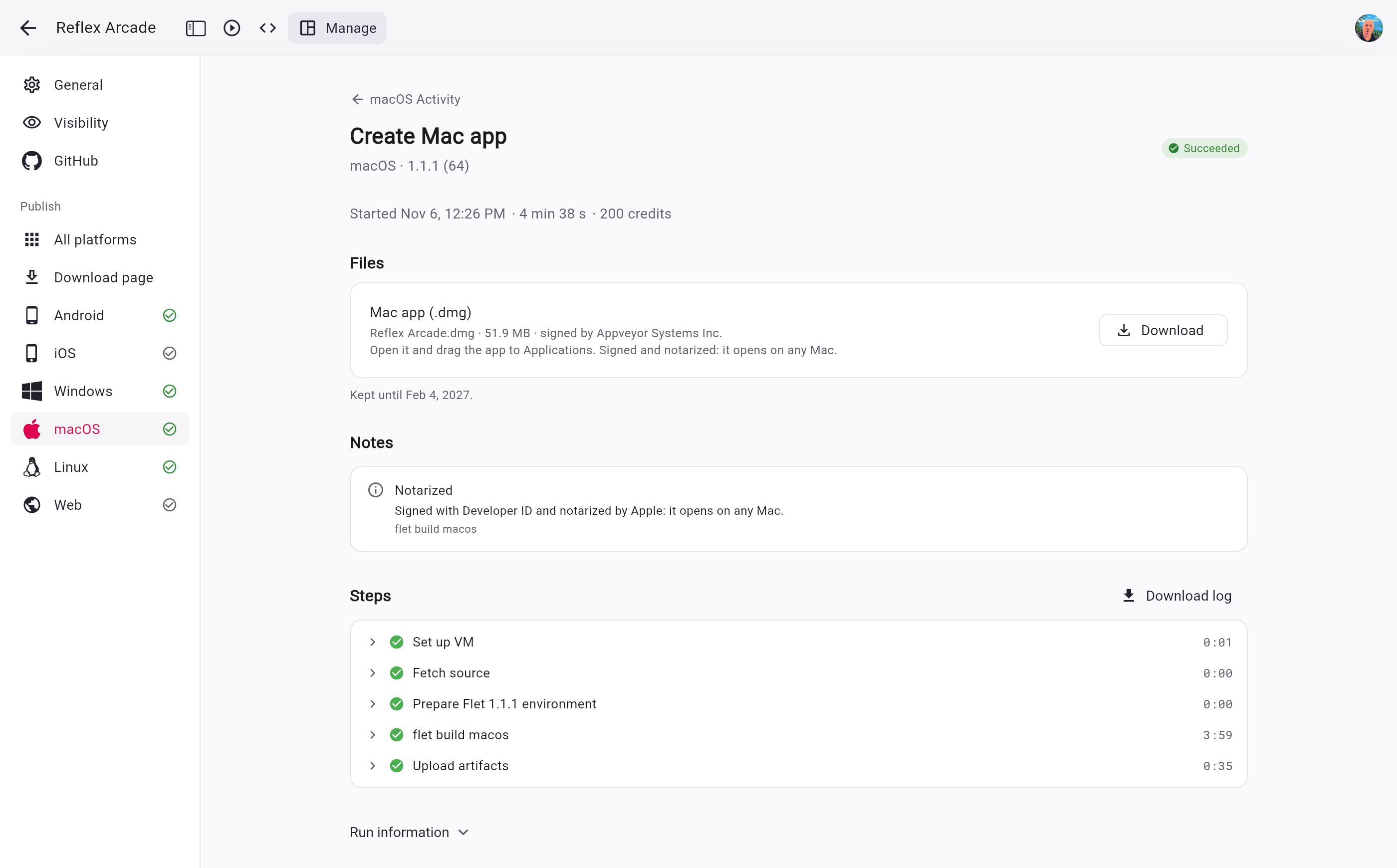
The cards don't stop at "here's your file". Once the app is published, a card shows what's live and an Update button to publish the app as it is now. Let's go platform by platform.
Android
- Share an APK on your app's download page (more on that below), or send its link to a friend.
- Publish an app bundle to Google Play on any track: internal testing, closed and open testing, or production.
- Studio creates the app's signing key for you, keeps it safe and reminds you to download a backup.
- Choose which phones an APK supports to keep it small.
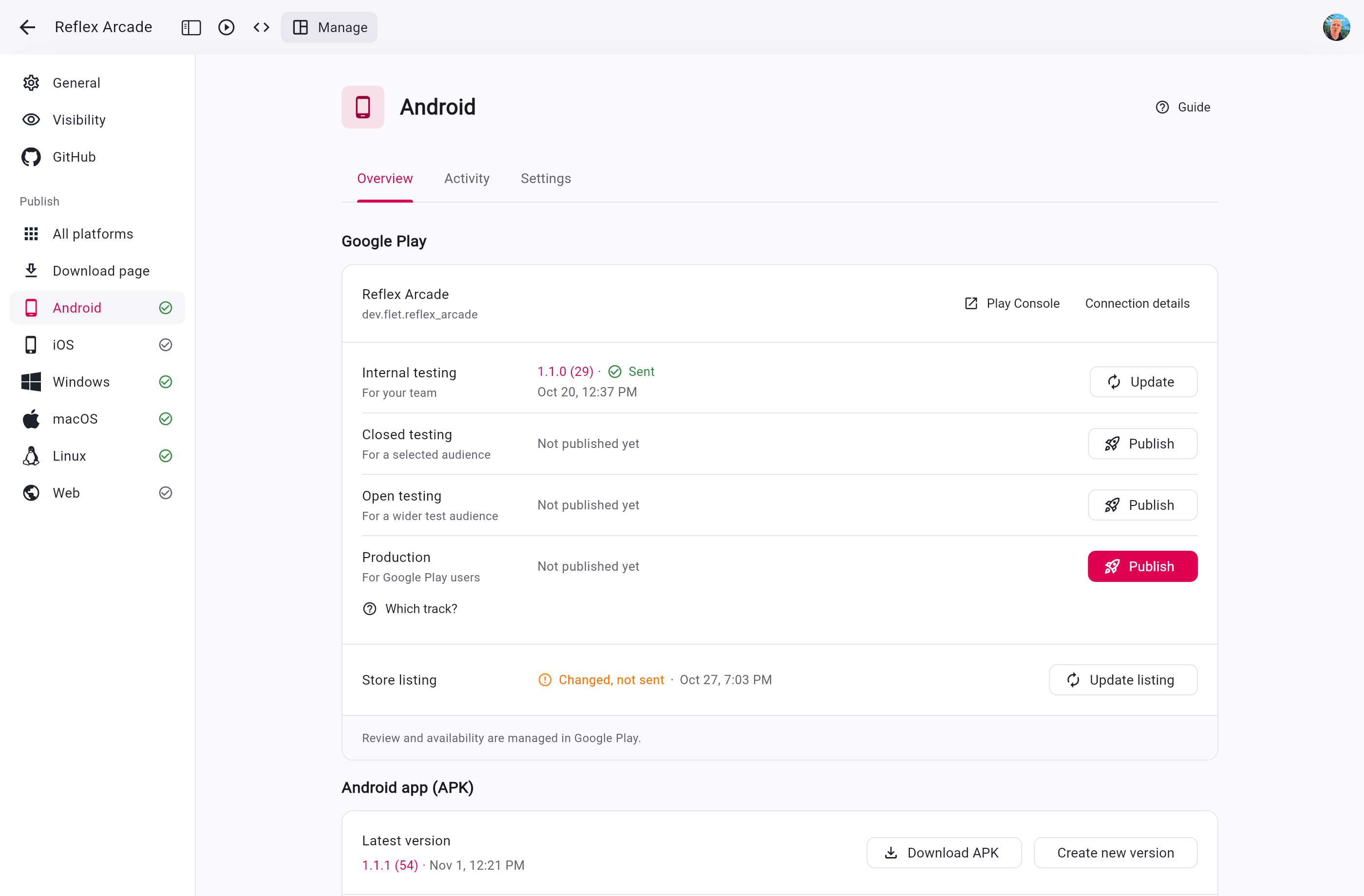
See Android and Publishing to Google Play.
iPhone and iPad
Apple's side has always been the hardest part, so we put the most work into it:
- Connect App Store Connect once with an API key, and Studio prepares the bundle ID, certificate and provisioning profile for every build. You never open the Apple Developer portal.
- Publish to TestFlight for your testers and to the App Store.
- Install on your own devices from an install link (an Ad hoc build), and let testers register their iPhones from a link they open on the phone.
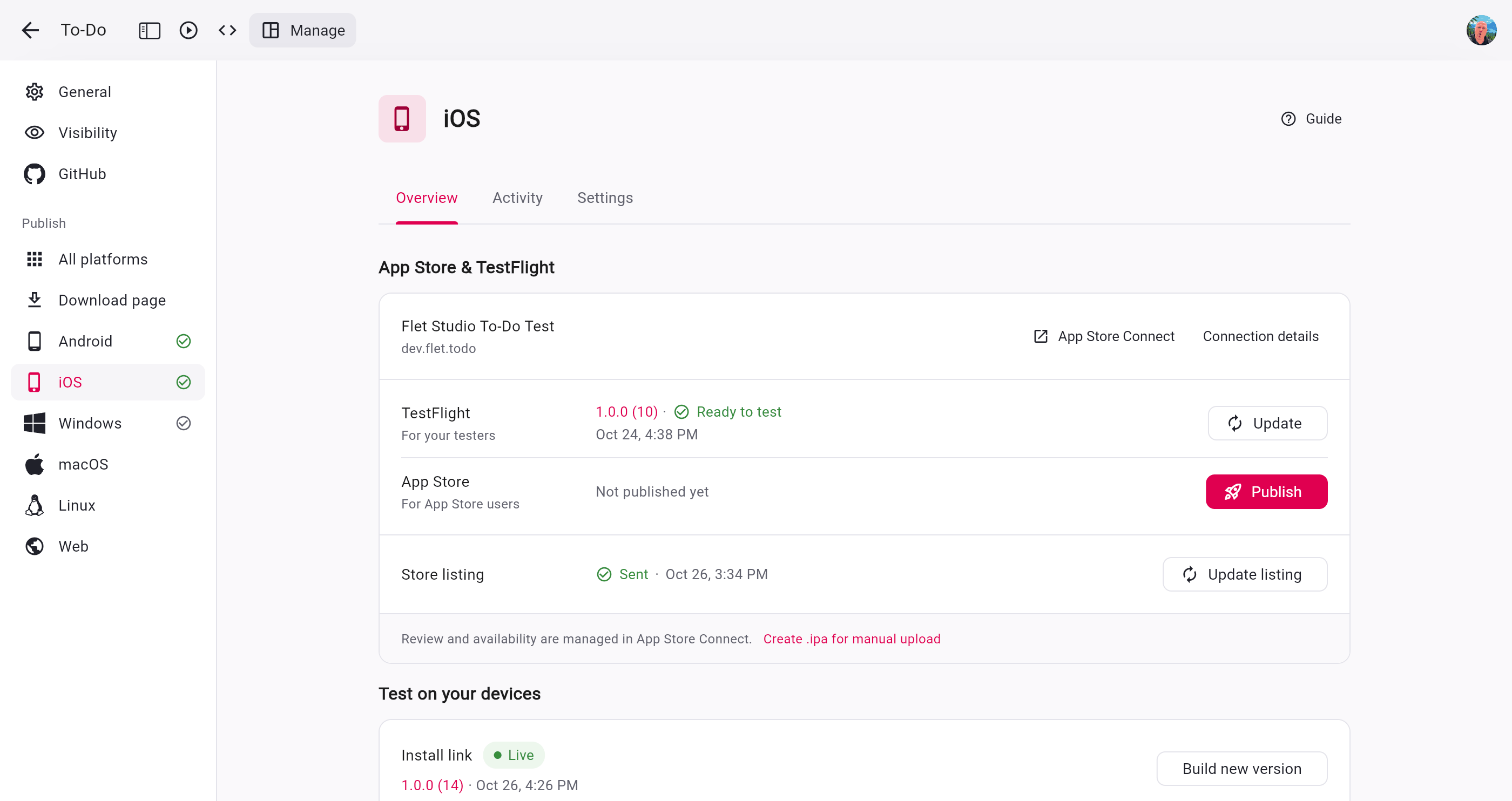
See iOS and App Store and TestFlight.
Windows, macOS, Linux and the web
- Windows: every build makes a one-click
setup.exeinstaller next to a portable.zip. Sign it with Azure Artifact Signing, so Windows doesn't scare your users with warnings, and publish it to the Microsoft Store. - macOS: a
.dmgdisk image signed with your Developer ID and notarized by Apple, or a release to the Mac App Store and TestFlight for Mac. - Linux: a
.tar.gzwith your app. - Web: a
.zipwith the static web app to host anywhere.
See Windows, macOS, Linux and Web.
A download page for every app
Not every app needs a store. Every app in Studio gets a public download page at
get.flet.app with its icon, version, "What's new" and the latest Android, Windows, Mac and
Linux builds. Visitors see the download for their own system first, and on a computer the page
shows a QR code to open it on a phone.
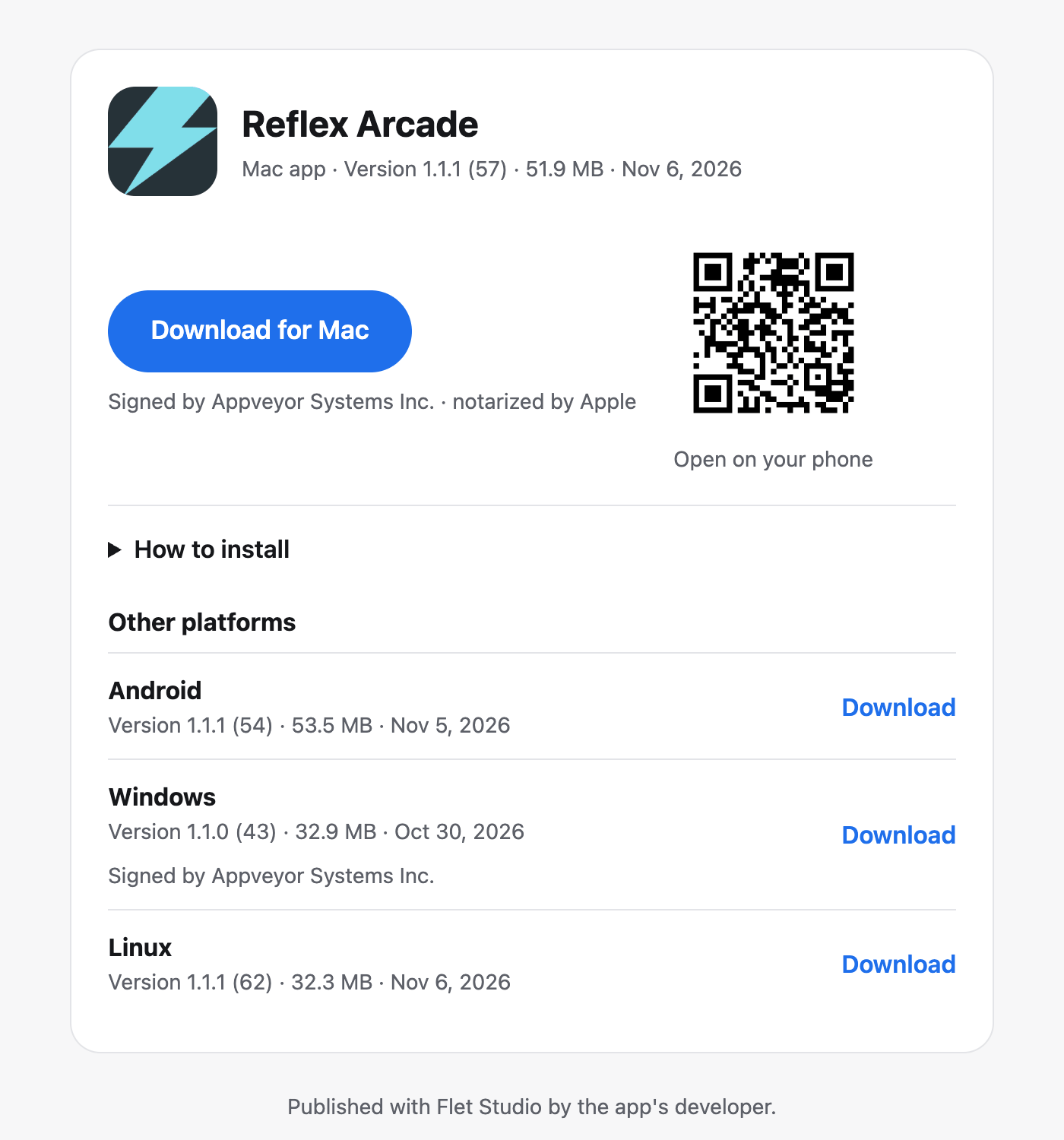
The link never changes: put it on your website or on a flyer once, and each new version replaces the app behind it. See Download page.
Store listings and build settings
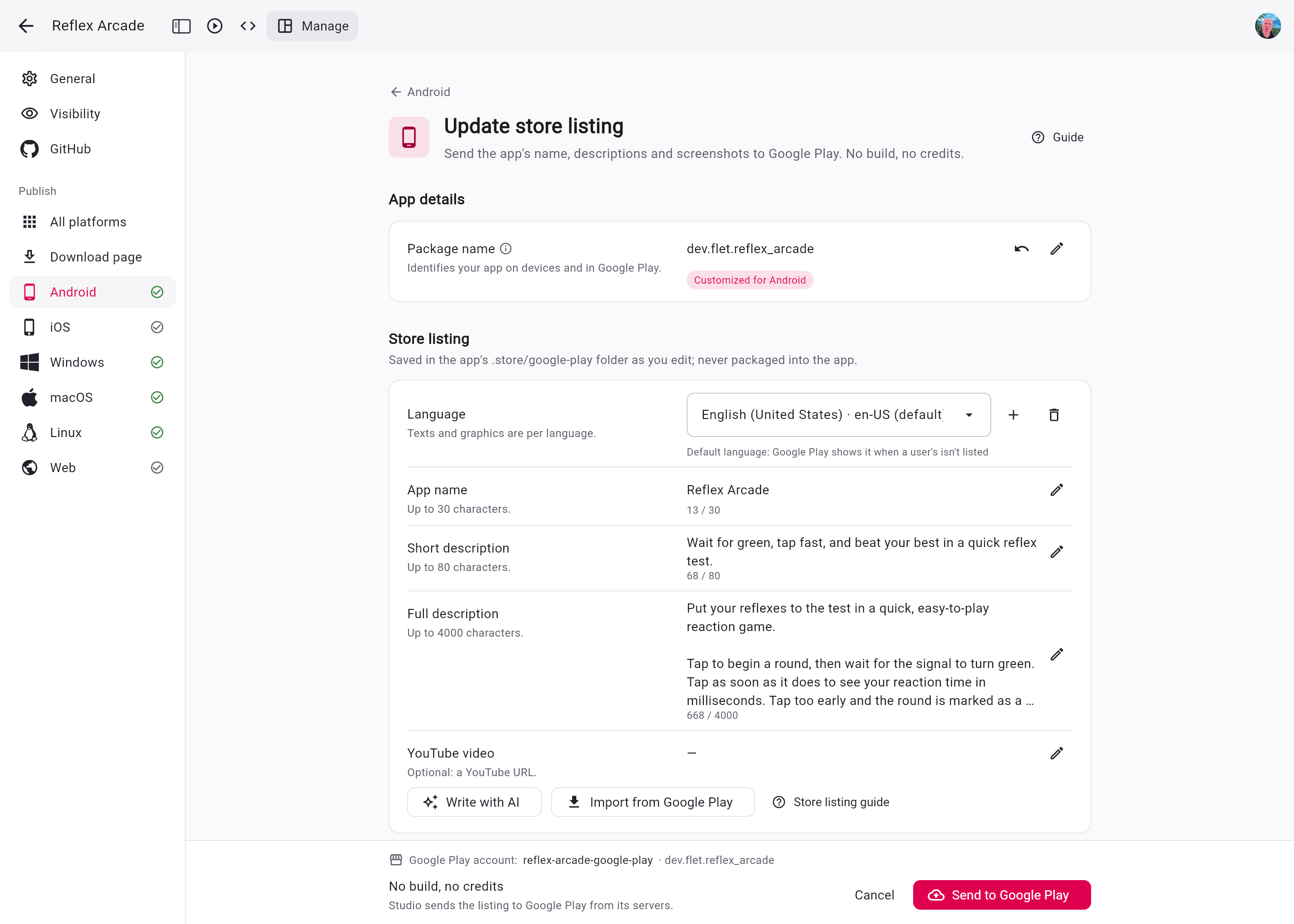
A store release is more than a binary. Each store wants a description, keywords, release notes and screenshots, often in several languages. Studio 2.0 has a store listing editor for Google Play, the App Store and the Microsoft Store:
- Ask the agent to write the listing, or to translate it into the languages you need.
- Take store-sized screenshots right from the Preview's phone, tablet and desktop devices.
- Import the listing an app already has in the store, and send it with a release or on its own.
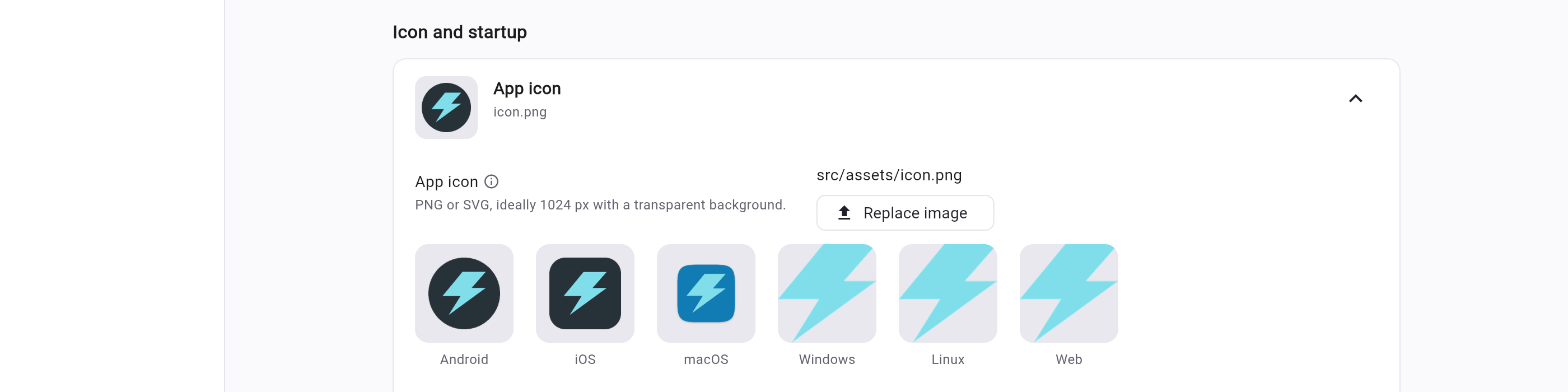
Each platform also has a Settings tab for everything flet build reads from
pyproject.toml: the app's name and version, the icon (in any shape, previewed for each
platform), splash and boot screens, permissions, deep linking and Python packages. No more
looking up the right [tool.flet...] key - Studio writes pyproject.toml for you, so a
project you download still builds on your machine.
Store accounts, keys and certificates are connected once in Settings › Publishing and used by all your apps. They are stored encrypted. See Signing keys and publishing accounts.
The agent publishes too
The agent knows about all of the above. Ask it to "build an APK" or "send this to TestFlight" and it proposes a run as a card in the chat. Nothing starts until you click it, so the agent never spends your build credits on its own.
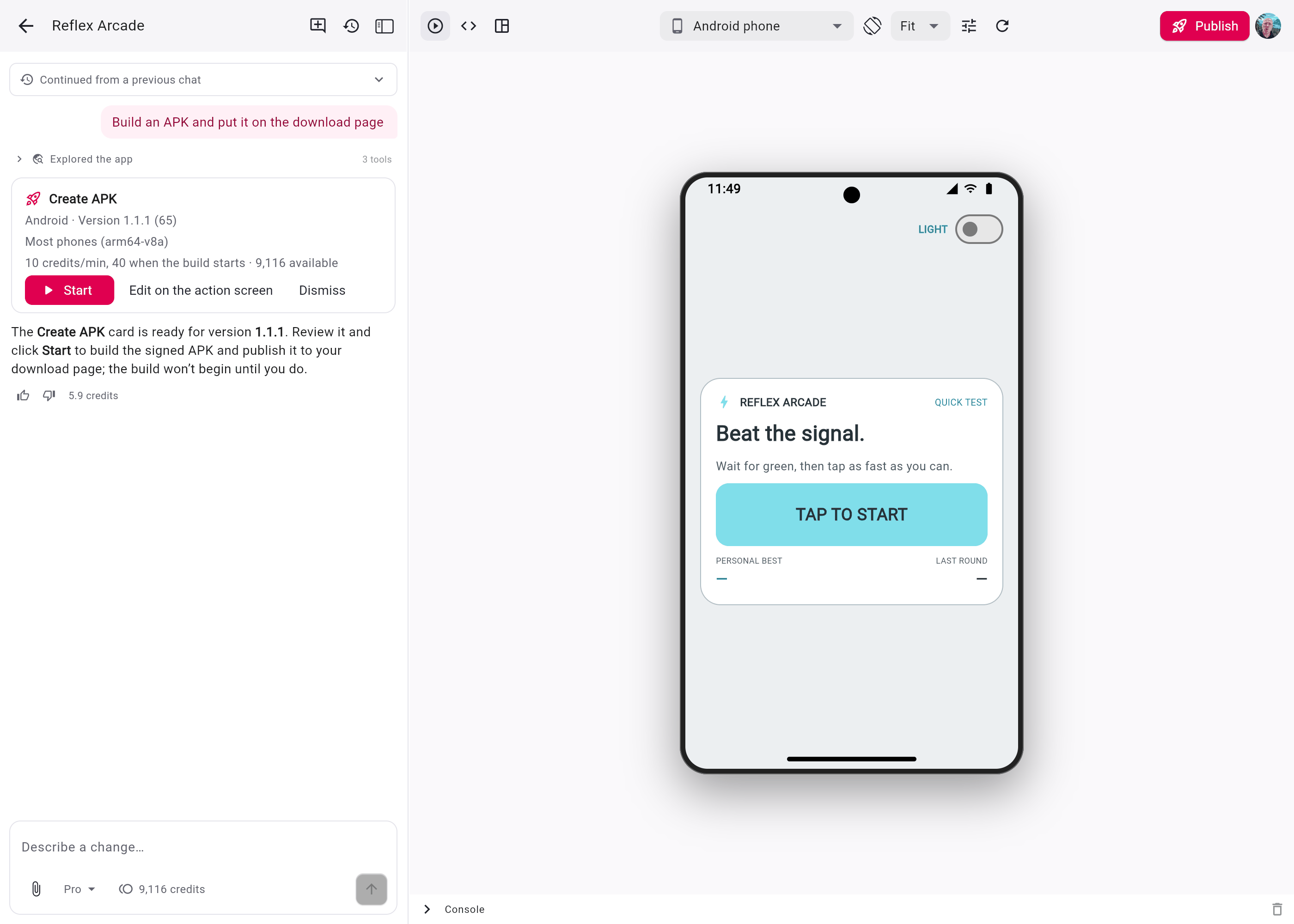
It can change build settings for you ("add the camera permission", "use this picture as the app icon"). And when a build fails, click Ask AI to fix: the agent reads the run's log, fixes what it can in the app, and suggests a new run.
The agent got a few other upgrades in this release:
- Turns keep going when you leave. Close the tab or lose your connection and the agent carries on. You'll see what it did when you come back. Stop ends a turn with a summary of what got done.
- Long chats. When a chat gets long, Studio suggests starting a fresh one, and New chat can carry a summary of the old one over.
- The agent takes screenshots on any Preview device, in portrait or landscape.
GitHub sync
Studio isn't meant to be the only place your code lives. With 2.0 you can sync an app with a GitHub repository, in both directions:
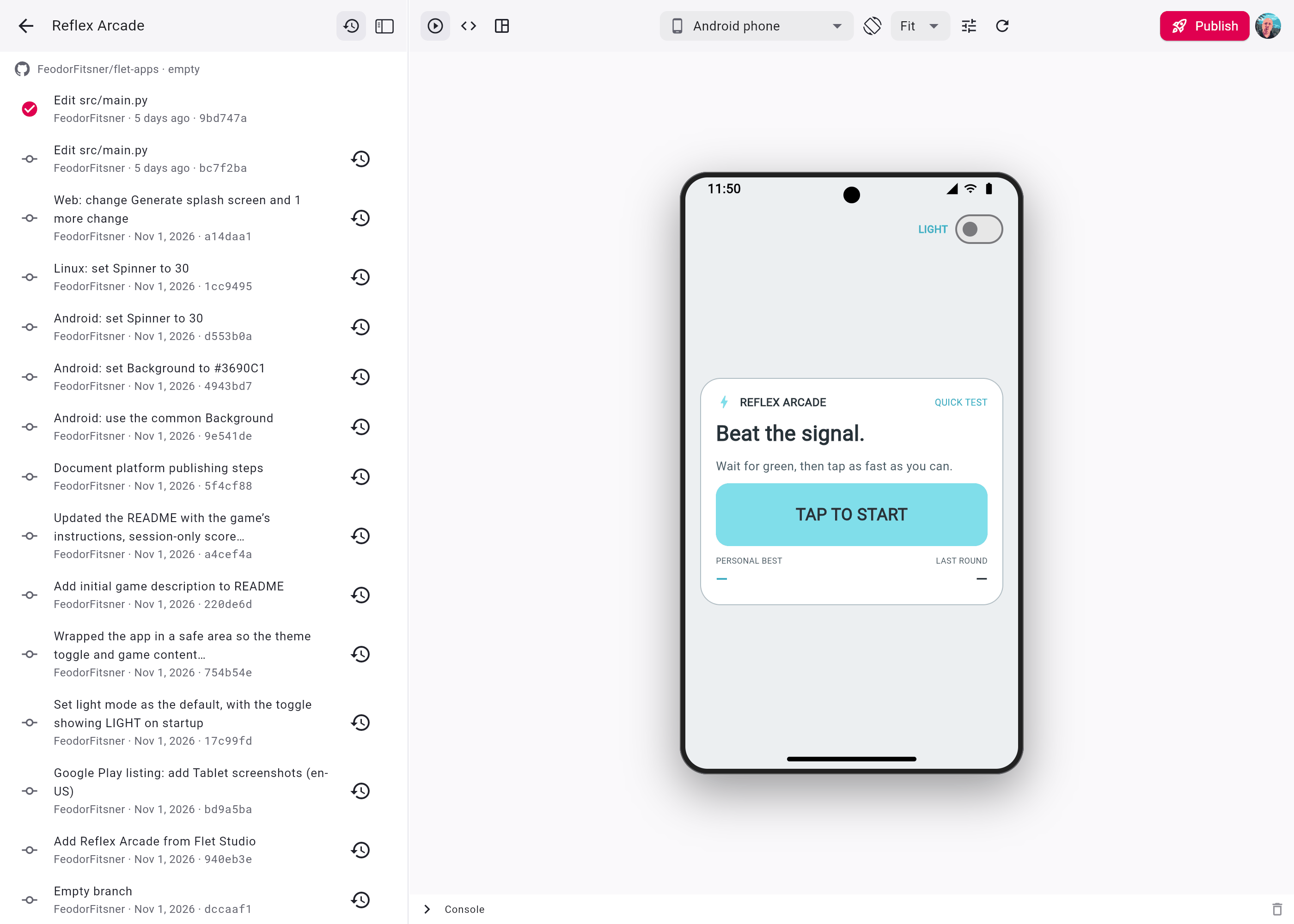
- Every change made in Studio is committed to the repository: your edits, settings and each agent turn, which becomes one commit with a message the agent writes.
- Pushes to the repository show up in Studio, so you can keep working in your local editor, with your favorite local agent, and publish from Studio.
Commits show up in Versions next to the versions you save yourself. See GitHub sync.
A new home for your app
Studio itself got a makeover:
- A new app screen with Agent, Preview, Code and Manage, on the desktop and on your phone.
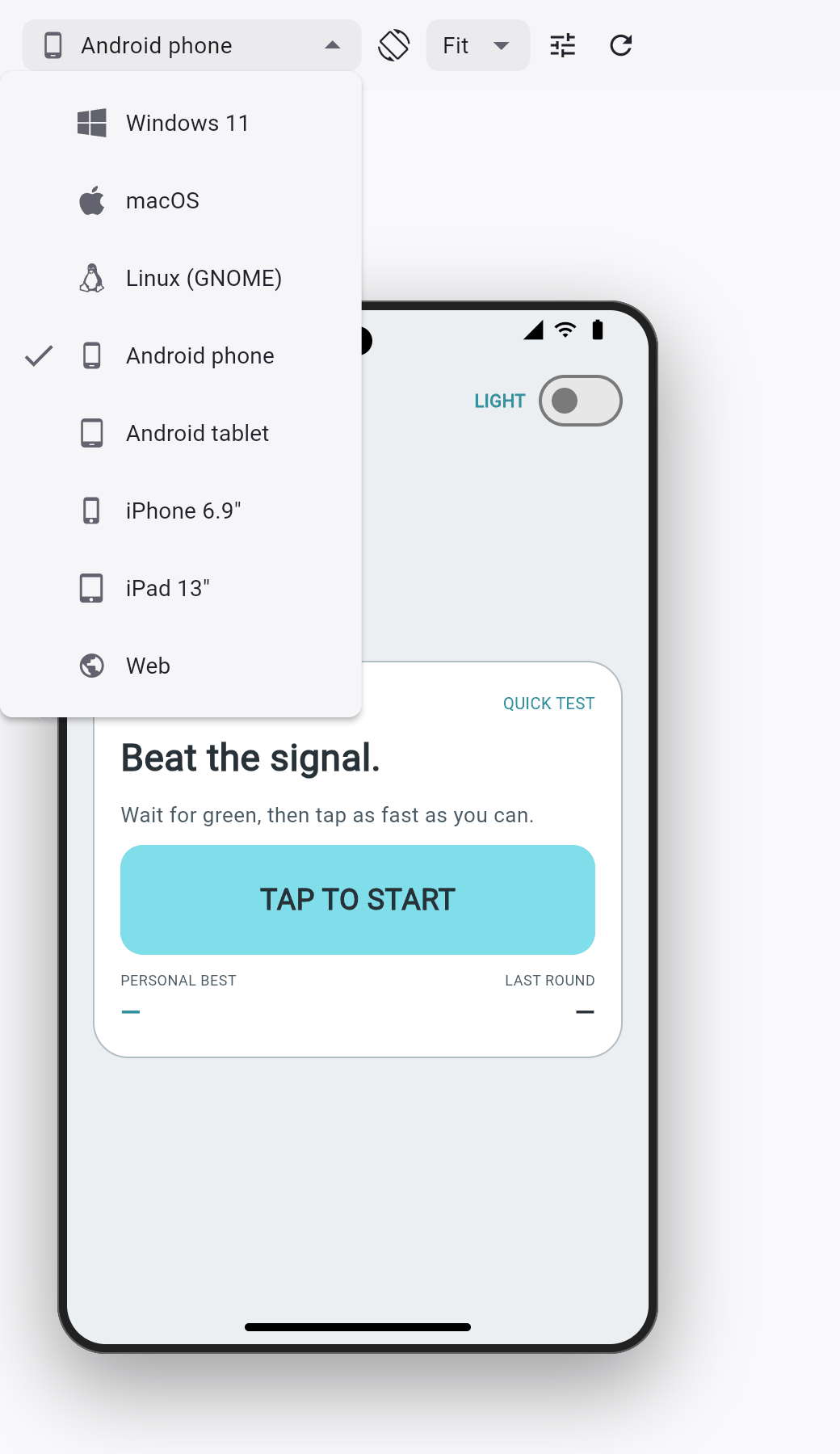
- New Preview devices: Windows 11, macOS, Linux, Android phone and tablet, iPhone and iPad, besides the web. See how your app looks on a phone before you build it for one.
- App thumbnails in your apps list and in the Gallery, with grid and list views.
- Accent colors: pick Pink, Blue or Neon green in Settings › Appearance.
- Studio and the Preview now run on Flet 1.1.
Plans and credits
The agent and builds now share one credit balance. Builds are charged by the minute while the build machine works on your app: 10 credits a minute on Linux (Android, web and Linux apps), 20 on Windows and 40 on macOS (iOS and macOS apps), with a 4-minute minimum. Queue time and machine start-up are free, and Studio shows the rate before you start.
- Explorer is free and includes 500 credits a month. It builds for every platform and shares your apps on download pages.
- Credit packs are now available on every plan, Explorer included: $20 for 10,000 credits.
- Creator adds publishing to the stores, code signing for Windows and macOS, GitHub sync, private apps, the Expert agent, two builds at a time and download pages kept for a year. It comes with 10,000 credits a month.
- Try Creator free for 7 days, with every Creator feature and 500 bonus credits. Canceling during the trial costs nothing.
See Pricing for the details.
Status page
Building in the cloud means more moving parts: build machines, Macs, stores. To see whether everything is up, there is now a status page at status.flet.dev. You can subscribe to get an email when something goes wrong and when it's fixed.
Try it
That's a lot for one release, and it's the biggest Flet Studio update so far. The full list is in What's new, and the step-by-step guides are in Publishing.
Open Flet Studio, pick an app (or ask the agent to build one) and press Publish. We'd love to see what you ship! Tell us how it went - and where it got stuck - in GitHub Discussions or on Discord.
Happy Flet-ing!