flet debug: the new CLI for testing Flet apps on mobile devices

Flet provides "Flet" app, for both iOS and Android, to "experience" your app on a real device. While using Flet app your Python app is still running on your computer and UI changes are streamed to a mobile device. While this approach is fast and convenient it has limitations: the app is able to only use sensors,libraries and permissions coming with Flet app and you can't know whether the app and all its dependencies are going to work when packaged and executed by a Python mobile runtime.
In the latest Flet v1 pre-release we have introduced three new Flet CLI commands to package and run Flet app on a real device or emulator:
flet debug- to run Flet app on a device or emulator.flet devices- to list connected devices.flet emulators- to list iOS/Android emulators and manage Android emulators.
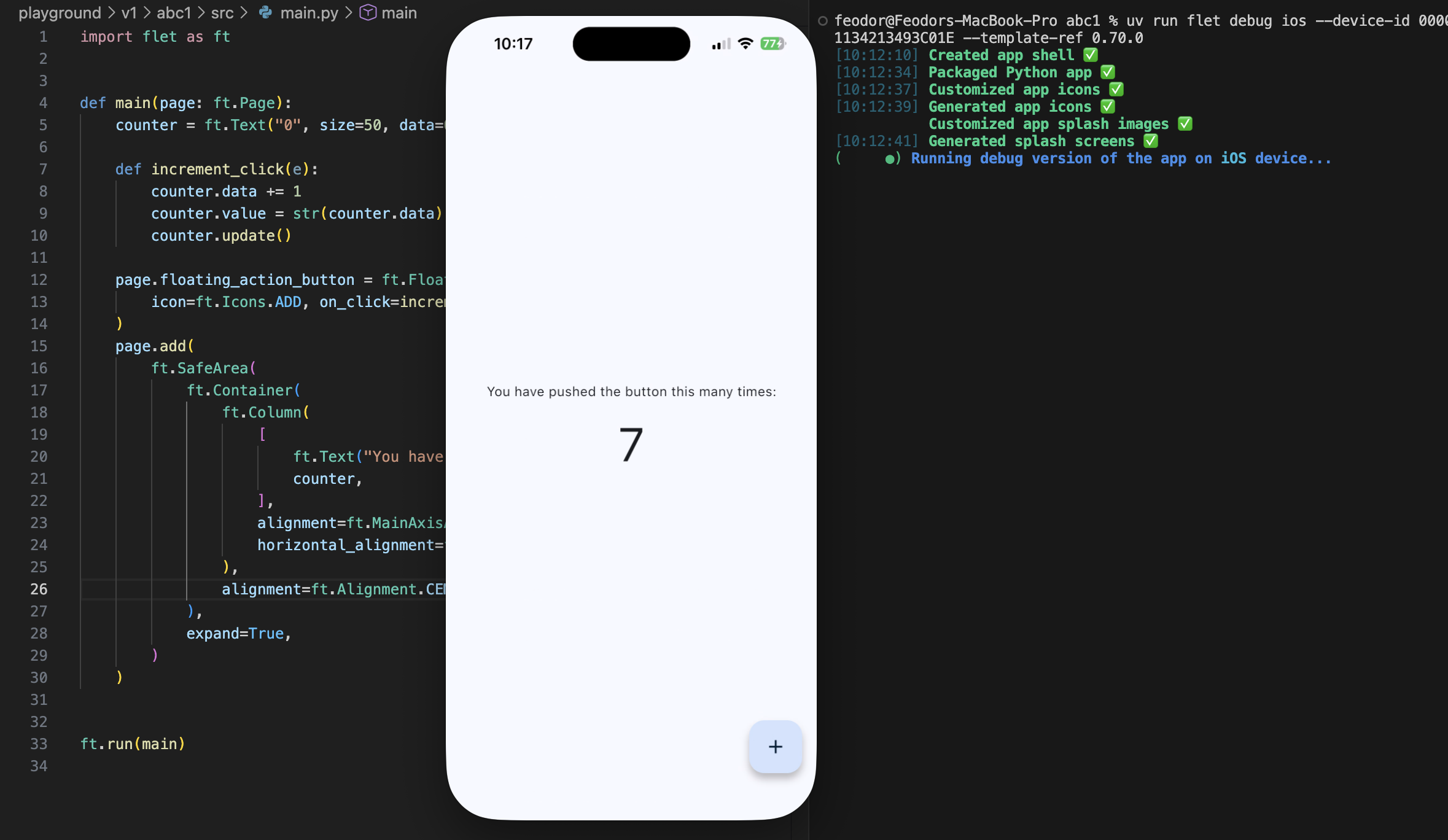
This is a screenshot of a simple Flet app running on my iPhone:
How to use
Run this command to list all connected iOS/Android devices and emulators:
flet devices
If you see empty list make sure emulator is running or device connected.
Copy device ID you'd like to run your app on.
Run the following command to build Flet app and run on your device:
flet debug <ios|android> --device-id <device_id> -v
You can ommit
-voption next time you run the command, if everything worked OK.
Testing on Android emulator
To list available iOS and Android emulators run this command:
flet emulators
This command requires Android SDK - you will be asked to install/update it.
To create a new Android emulator run:
flet emulators create my-emulator
To start an emulator:
flet emulators start my-emulator
Testing on iOS/iPadOS emulator
To create a new iOS/iPadOS simulator:
List simulator models:
xcrun simctl list devicetypes
List available runtimes:
xcrun simctl list runtimes
Create simulator:
xcrun simctl create "<Name>" "<Device Type>" "<Runtime>"
For example:
xcrun simctl create "My iPhone 17 Pro" "iPhone 17 Pro" com.apple.CoreSimulator.SimRuntime.iOS-26-1
Start Apple Simulator with:
open -a Simulator
Open "File -> Open Simulator -> <Your Simulator>".
Run this command to get simulator device ID:
flet devices
Testing on a real iPhone/iPad device
- Enable developer mode on your device.
- Connect the device with USB cable. You can use debug via Wi-Fi, but it's significantly slower than via cable.
- Open XCode, go to "Window -> Devices and Simulators". Wait until "device support files" are copied - it could take a few minutes.
When you connect an iOS device and open Xcode, it automatically downloads “device support” and symbol files from the iPhone. These files allow Xcode (and Flutter) to understand the exact iOS version on the device and provide fast, reliable debugging. Without them, Xcode can’t map system libraries correctly, which leads to slow startup, missing breakpoints, or warnings like “LLDB could not find the on-disk shared cache.” This setup happens only once per iOS version and is required for running or debugging apps on a physical device.
- Create a new provisioning profile that includes your device ID and developer certificate.
- Configure app bundle ID and "debugging" profile in
pyproject.toml:
[tool.flet.ios]
bundle_id = "com.your-company.app"

[tool.flet.ios.export_methods."debugging"]
provisioning_profile = "Development com.your-company.app"
FAQ
Does flet debug replace "Flet" mobile app?
No. "Flet" app will stay there and will be updated by Flet v1 Beta release.
"Flet" app allows quickly experience your app on a mobile device, but with limited capabilities (not all permissions are enabled and the app itself is running on your computer).
flet debug allows running on emulator or a real device without making IPA/APK package and manually uploading it to a device. Your entire app is packaged and run on a device. You can customize permissions and other settings in pyproject.toml.
When is stable Flet v1 going to be released?
We are going to release a stable Flet v1 Beta before Christmas.
Best regards and happy Fletting!